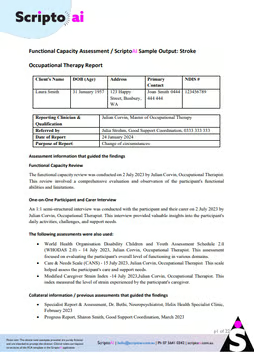

Managing your subscription and billing shouldn’t feel like another item on your clinical to-do list. We’ve made it easy to stay in control—whether you’re just starting out or changing your existing plan.
In this guide, we’ll walk you through how to access your billing portal, update payment methods, and manage your subscription—without the tech headache.
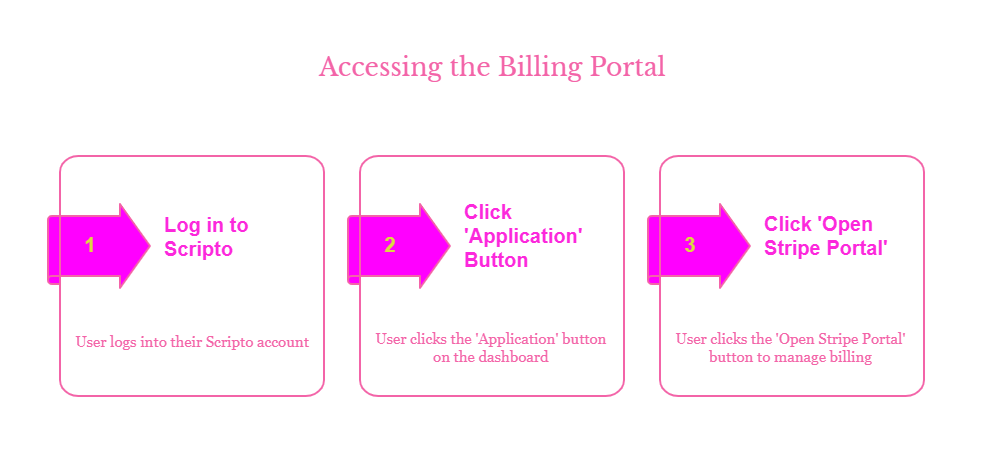
Step 1: Access the billing portal ▪ To start, log in to your Scripto account and click the ‘Application’ button in the top-right corner of your dashboard.
▪ From here, click ‘Open Stripe Portal’ to securely manage your billing via Stripe.
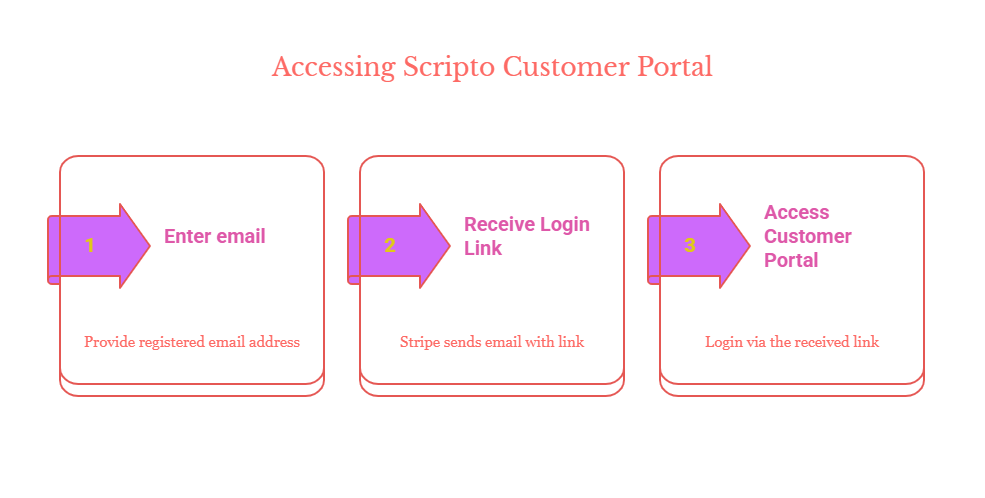
Step 2: Log in to your Stripe customer portal ▪ You’ll be prompted to enter the same email address you used to register with Scripto.
▪ Click ‘Send’ and check your inbox for an email from Stripe containing a login link (valid for 30 minutes).
▪ Click ‘Log in to your customer portal’ to proceed.
Step 3: Manage your subscription and payment methods ▪ Once inside the portal, you can:
▪ Update or change your subscription plan
▪ Add or remove payment methods
▪ Download invoices
▪ Cancel or resume your subscription
🔐 How to update your payment method
▪ Keeping your payment details current avoids interruptions to your service.
▪ Go to ‘Payment Methods’
▪ Click ‘+ Add payment method’ and enter your card details
▪ To make it your default, click the 3-dot menu next to the new card and choose ‘Make Default’
▪ Want to remove a card? Select ‘Delete’
☛ Are you a business owner th at prefers direct debit?
▪ Click the ‘AU Direct Debit’ tab and enter your account details.
Step 4: Add your ABN for invoicing
☛ To include your ABN on invoices:
▪ Scroll to the Billing Information section
▪ Select ‘AU ABN’ from the ID Type dropdown
▪ Enter your ABN and click ‘Update Information’
Step 5: Update your subscription plan
☛ Need to adjust your plan as your needs grow?
▪ Click ‘Update Subscription’
▪ Toggle between monthly and yearly options
▪ Choose your preferred plan, add any promo code, then click ‘Confirm’
▪ To double-check the change, head to Invoice History—your new plan will be listed there.
Need Help?
If you have any questions or need support, we’re here to help.
Email us at hello@scriptoai.com.au, click the purple chat box at the bottom of your screen, or book a 1:1 session via the demo calendar.


